To delete a geofence in the Mobile App or on the website, please follow the instructions below.
Mobile App
- Open the SafeTag app and log in if necessary
- Click the 'More' button in the bottom right-hand corner of the app
- Find the Geofence Settings text and click it.

4. Click on the geofence you wish to edit/delete
5. Once on your Geofence, you will see in the top right a trash icon

6. Then, you will see a confirmation box. Please click "Delete"
7. All done!
SafeTag Website
Go to app.safetagtracking.com/login and log in
Select ‘Tracking’ and then click ‘Geofences’ from the top menu bar
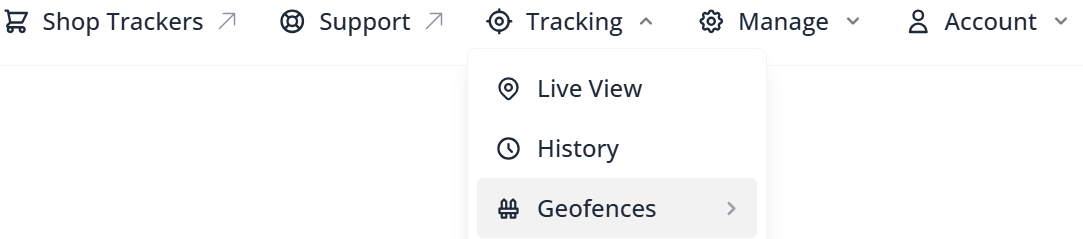
- Select the geofence name you wish to delete
- This will then bring up a pop-up menu. In this geofence’s settings, in the bottom left-hand corner, will be ‘Delete Geofence’

- This will then bring up another pop-up asking you to confirm you are happy to delete this geofence
- Click Delete to permanently delete this geo fence!
Was this article helpful?
That’s Great!
Thank you for your feedback
Sorry! We couldn't be helpful
Thank you for your feedback
Feedback sent
We appreciate your effort and will try to fix the article